Key Takeaways:
- QR codes are versatile tools that link physical materials to digital content, enhancing professional networking, marketing, and sales strategies.
- Generating QR codes can be done seamlessly across iPhone, Android, and computer devices using built-in features, apps, or online platforms.
- Proper saving, printing, and testing of QR codes ensure scanability and professionalism, directly impacting lead capture and brand image.
- Integrating QR codes strategically within business materials and events fosters engagement, user convenience, and efficient lead management.
- Attention to design, file quality, and printing technology transforms QR codes from simple images into powerful commercial assets.
In today’s fast-paced professional and personal environments, QR codes have become indispensable tools for instant sharing and interaction. Whether you want to streamline lead generation, share your digital business card, or direct clients to a bespoke microsite, knowing how to generate, save, and print QR codes effectively across devices is a key digital skill every leader and marketer should master.
A QR code—short for Quick Response code—is a type of matrix barcode that stores data readable by cameras or scanners. Unlike traditional barcodes that hold limited information, QR codes can encode URLs, contact details, payment info, or any alphanumeric text, making them highly versatile.
Common applications include sharing contact information instantly, directing users to websites without typing URLs, facilitating contactless payments, and capturing leads by embedding forms or CRM integrations. Printing QR codes extends their utility beyond the digital realm into physical media such as business cards, brochures, event passes, or retail displays. This amplification expands visibility and engagement, converting simple encounters into measurable connections.
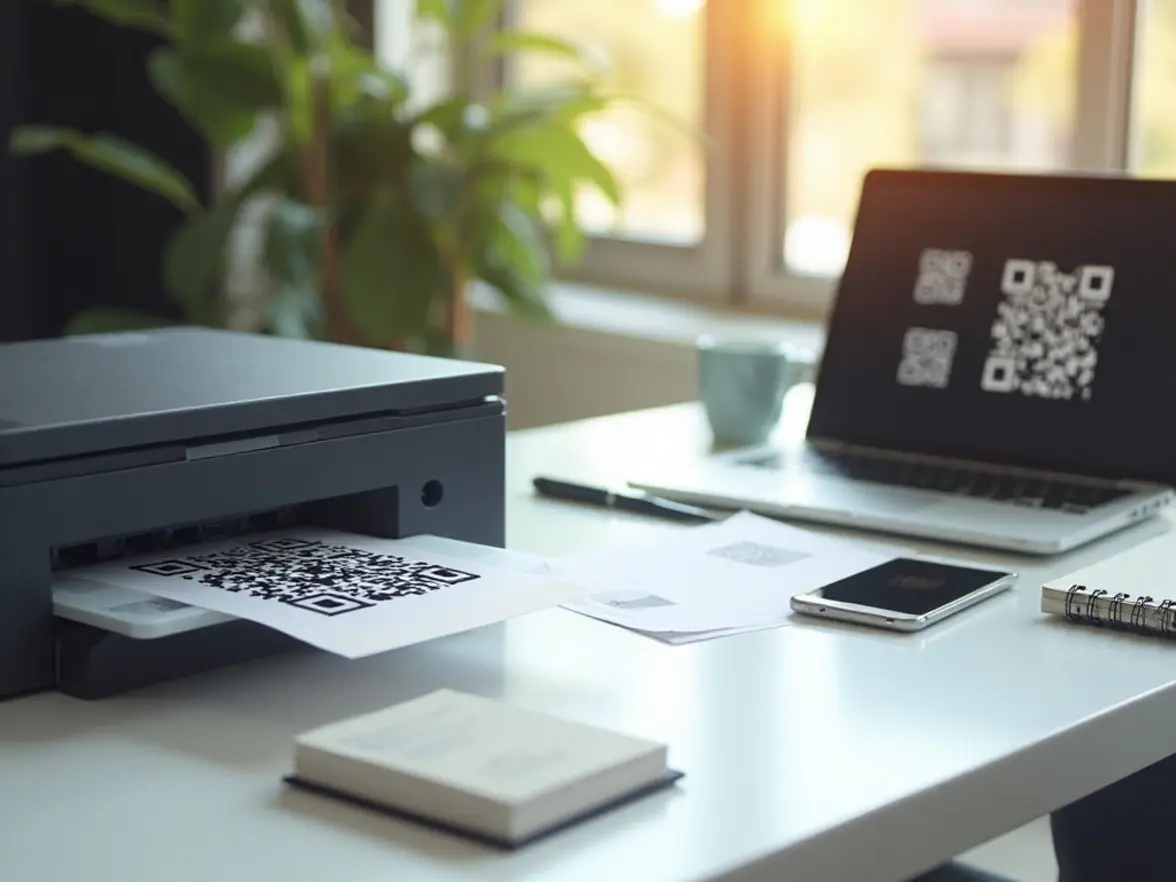
Generating a QR Code on Your Device
In an era where technology fuels professional growth and business expansion, mastering how to generate QR codes efficiently across multiple devices is a critical skill. Whether you are a sales leader looking to maximize lead capture, a marketing professional aiming to enhance your digital campaigns, or a business strategist seeking seamless personal branding tools, understanding device-specific methods to create high-quality QR codes bridges the gap between physical presence and digital engagement.
Creating QR Codes on Your iPhone
Though iPhones do not have a dedicated QR code generator pre-installed, they offer several accessible ways to produce functional QR codes:
- Using the Shortcuts app: Automate QR code creation by setting up a shortcut that converts URLs or contact info into QR code images saved to your device.
- Online QR code generators through Safari: Platforms like QR Code Generator or QRCode Monkey offer customizable design features with download options accessible directly in your browser.
- Third-party apps: Apps such as “QR Code Reader & Generator” or “QRbot” provide offline functionality and customization, ideal for professionals on the move.
Tip: Choose well-reviewed, regularly updated apps to ensure reliable QR code output that supports your professional image.
Generating QR Codes on Android Phones
Android devices often come equipped with native QR code generation features or easy access through companion apps:
- Google Chrome and Google Lens integration: Many Android models allow QR code creation from webpages using sharing or Lens features without additional downloads.
- Dedicated apps: Apps like “QR Code Generator” or “Barcode Generator” offer branding customization and greater control.
- Responsive online tools: Mobile-friendly QR code websites enable high-quality code creation directly from browsers.
How to Generate QR Codes on a Computer
Desktops and laptops provide the most comprehensive options for professional QR code generation, including batch processing and fine control over aesthetics:
- Web-based platforms: Services like The QR Code Generator and Unitag QR Code Creator allow for color customization, logo embedding, and frequent updating of linked content.
- Offline software: Tools such as “QR Code Studio” provide secure, offline generation to maintain data privacy.
- Browser extensions: Instant QR code creation for web pages with potential integration to CRMs for sales workflows.
Choosing reliable generators ensures your QR code is both visually appealing and accurately scannable, forming a vital part of your branding and marketing tactics.
Saving Your QR Code for Printing
Creating a QR code is only the first step toward leveraging its full potential. To print QR code images effectively, proper saving, organization, and quality preservation are crucial. Mastering these nuances guarantees your QR codes scan flawlessly and uphold your brand’s professionalism.
Saving QR Codes as Image Files Across Devices
On iPhone
- Press and hold the generated QR code image and select Save Image to store it in Photos.
- Organize saved codes in dedicated albums for quick retrieval.
- When using Shortcuts, configure workflows to save images in high resolution to Photos or Files.
On Android
- Use the “Download” or “Save” option in apps or browsers to store images in Gallery or Files.
- Utilize cloud-synced folders (like Google Drive) for cross-device access and backup.
- Configure apps to save high-resolution PNGs or JPEGs for best print results.
On Computers (Windows and macOS)
- Right-click QR code images in browsers and select “Save image as…”
- Organize files in hierarchic folders by campaigns or purposes for team efficiency.
- Prefer lossless formats like PNG or SVG to maintain print clarity and scalability.
Maintaining Quality and Resolution When Saving QR Codes
- Use lossless formats: PNG and SVG preserve crisp edges and contrast crucial for scanner accuracy.
- Avoid compressing images: Preserve original resolution to prevent pixelation.
- Test scans before printing: Confirm readability using multiple scanning devices and apps.
- Maintain high contrast: Ensure strong foreground-background separation to prevent scanning failures.
Organizing QR Code Files for Easy Access and Efficient Printing
- Create clear, hierarchical folder structures based on campaign, date, or client.
- Use consistent naming conventions including project details and version info.
- Synchronize files using cloud services to enable instant team access.
- Attach metadata or logs for contextual clarity on QR code usage and tracking.
Printing QR Codes Directly from Your Device
Printing QR codes from iPhones, Android devices, or computers empowers swift deployment of tangible assets that enhance commercial and branding efforts.
Step-by-Step Printing from an iPhone
- Save or generate your QR code and store it in the Photos app.
- Open the Photos app and select the image.
- Tap the Share icon and choose Print.
- Select an AirPrint-enabled printer on your Wi-Fi network.
- Adjust print settings if necessary, then tap Print.
If AirPrint printers aren’t available, email the QR code image to a computer for printing.
Printing from Android Devices
- Save the QR code to Gallery or Files.
- Open the image, tap the menu or share icon, then select Print or a printing app.
- Choose your printer, adjust settings, and print.
Alternatively, send the image via email to a computer for traditional printing options.
Wireless Printing Technologies Overview
- AirPrint for iOS devices enables driverless wireless printing.
- Google Native Print Service facilitates printer discovery and job handling on Android.
- Bluetooth Printing supports portable, cable-free device connectivity.
Printing QR Codes from a Computer
Printing from desktop environments grants precise control over image quality, size, and file handling to produce polished, scan-friendly materials.
Windows Printing Options
- Use Windows Photo Viewer or the Photos app’s print function with preview and DPI settings.
- Embed QR codes within Microsoft Word or PowerPoint documents for combined branding elements.
- Export as PDFs for vector quality, ensuring scalable, sharp prints.
macOS Printing Tools
- Open images with Preview and use File > Print for scaling and quality adjustments.
- Insert codes into Pages or Keynote files for branded print-outs.
- Illustrator or Acrobat provide advanced vector printing for high-end collateral.
Print Quality Optimization
- Set paper size and orientation to match final use.
- Choose highest DPI to maintain sharp edges.
- Manually scale images to preserve scanability.
- Prefer matte or semi-gloss papers to reduce glare.
Best Practices to Ensure QR Code Scanability After Printing
Ensuring your printed QR codes are easy to scan improves user experience and solidifies your professional image.
Ideal Size and Contrast
- Maintain a minimum print size of 2 x 2 cm; larger sizes help with distant or outdoor scanning.
- Provide a quiet zone of approx. 4 mm margin around the code.
- Use high-contrast color schemes—black on white is ideal.
- Avoid gradients, patterns, or low contrast colors that confuse scanners.
Material Recommendations
- Matte paper for reduced glare and durability.
- Waterproof or laminated materials for outdoor use or multi-touch items.
- High-quality ink and print resolution to avoid pixelation.
- Vinyl stickers with strong adhesives for packaging and promotional materials.
Testing Printed QR Codes
- Scan with multiple smartphone models and apps.
- Test in varied lighting and angles to simulate real-world use.
- Verify the linked content is active, mobile optimized, and secure.
- Confirm integration with CRM or lead capture systems works if applicable.
- Print samples before bulk runs to avoid costly errors.
Troubleshooting Common Printing and Scanning Issues
Proactively addressing pitfalls prevents scanning failures and safeguards your professional reputation.
Common Issues
- Blurry or pixelated prints caused by low-res images or printer settings.
- Incorrect sizing that is too small or distorted.
- Poor contrast or unsuitable color choices.
- Physical smudges, reflections, or worn prints interfering with scanning.
- Insufficient quiet zones causing scanner confusion.
Solutions
- Use highest printer resolution and “Best” quality modes.
- Start from high-res or vector files (SVG, PDF).
- Respect minimum size guidelines; avoid over-scaling.
- Maintain black-on-white or high contrast coloring.
- Print on matte or semi-matte paper.
- Ensure clear quiet zones around QR patterns.
Optimizing Scan Conditions
- Use diffuse, even lighting to reduce glare.
- Encourage users to tap screen for camera focus before scanning.
- Hold scanning device steadily at 10–30 cm distance.
- Use updated scanner or native camera apps for best detection.
Additional Tips and Creative Uses for Printed QR Codes
Expanding beyond functionality, creatively integrating printed QR codes enhances user engagement and commercial utility.
Marketing Collateral Integration
- Business Cards: Embed codes linking to full digital profiles or portfolios, elevating network interactions.
- Posters and Flyers: Direct to event registrations, offers, or videos to boost engagement.
- Product Packaging: Link customers to tutorials, registrations, or loyalty programs.
- Direct Mail: Transition recipients to digital channels for measurable campaign response.
Events and Personal Sharing
- Event Badges: QR-coded badges streamline check-in and lead capture.
- Presentations: Share codes on slides or handouts for instant access to resources.
- Personal Networking: Replace manual contact info exchange with quick QR scans for efficiency.
Enhancing User Experience and Business Outcomes
- Simplify user actions with access to forms, bookings, or demos.
- Track scans for insights on behavior, location, and campaign success.
- Provide exclusive offers or VIP content to foster loyalty.
- Integrate with CRM for efficient lead capture and follow-up.
Printing QR codes thoughtfully transforms them into dynamic assets that empower digital leadership, drive engagement, and reinforce a technology-forward commercial culture—all vital ingredients to standing out in today’s competitive business landscape.